Maximizing deep learning performance on NVIDIA Jetson Orin with DLA involves understanding the hardware, optimizing models, and following best practices.

Introduction
Deep learning has revolutionized various fields, from computer vision to natural language processing. However, deploying deep learning models efficiently on edge devices remains challenging. NVIDIA's Jetson Orin, a powerful edge AI platform, addresses this challenge with its Deep Learning Accelerator (DLA). In this blog, we will explore how to maximize the performance of deep learning models on the NVIDIA Jetson Orin using DLA.
Understanding Jetson Orin
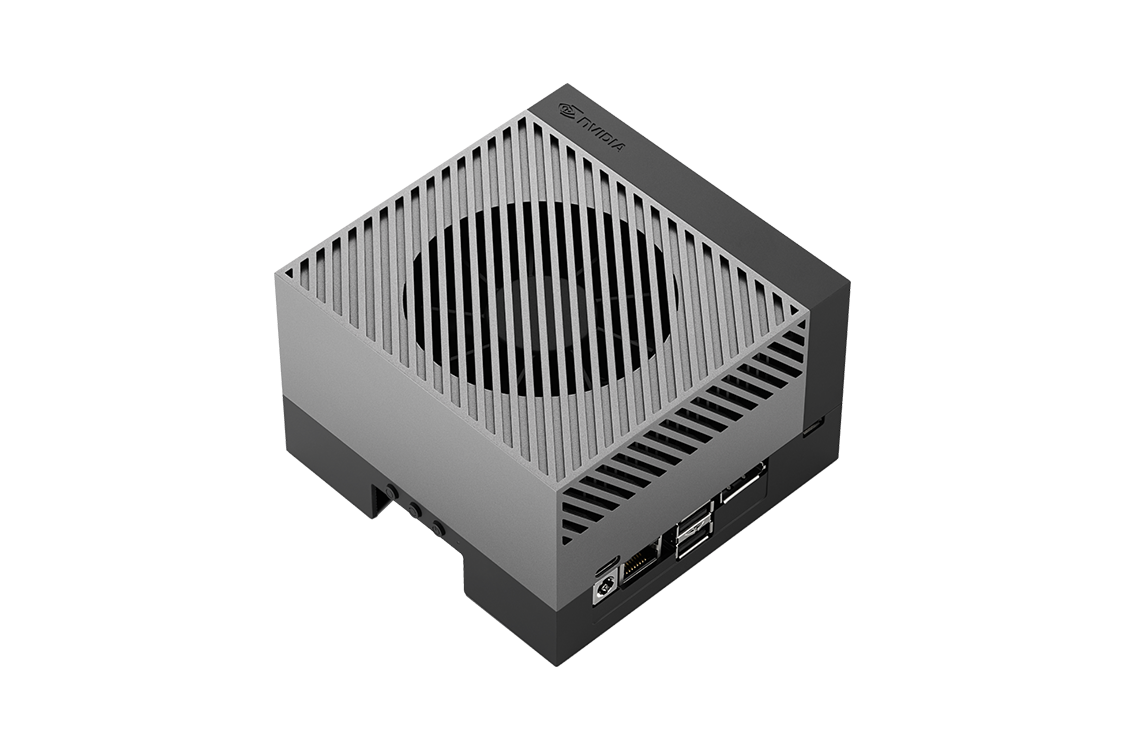
Jetson Orin
The NVIDIA Jetson Orin is a system-on-module (SoM) designed for edge AI applications. It features a powerful GPU, a high-performance CPU, and dedicated accelerators for deep learning. The key components of Jetson Orin include:
What is DLA?
The DLA on Jetson Orin is designed to accelerate the inference of deep learning models. It offloads computation-intensive tasks from the GPU and CPU, freeing them for other tasks. The DLA is optimized for power efficiency, making it ideal for edge applications where power consumption is critical.
Benefits of Using DLA
Preparing Your Environment
Preparing Your Environment
To maximize the performance of deep learning models on Jetson Orin, you need to set up your development environment. Here are the steps to get started:
Optimizing Models for DLA
Optimizing Models for DLA
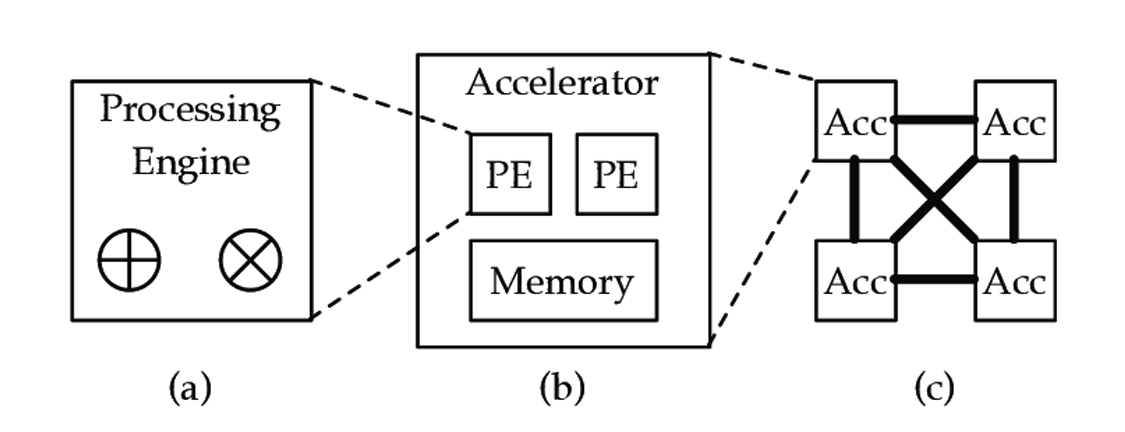
To maximize the performance of your deep learning models on Jetson Orin, you need to optimize them for the DLA. Here are some key steps to follow:
1. Choose the Right Model
Not all models are compatible with the DLA. The DLA supports a subset of operations and layers commonly used in deep learning models. Before optimizing your model, ensure it is compatible with the DLA. NVIDIA provides a list of supported layers and operations in the DLA documentation.
2. Convert the Model to ONNX
ONNX (Open Neural Network Exchange) is an open format for representing deep learning models. It allows models trained in different frameworks to be used with various tools and hardware. To use the DLA, you need to convert your model to the ONNX format. Both PyTorch and TensorFlow provide utilities for exporting models to ONNX.
3. Optimize with TensorRT
TensorRT optimizes deep learning models for deployment on NVIDIA hardware. After converting your model to ONNX, use TensorRT to optimize it for the DLA. TensorRT provides a Python API for this purpose. Here is an example of how to optimize a model with TensorRT:
|
import tensorrt as trt # Load the ONNX model # Create a TensorRT logger and builder # Create a network definition # Parse the ONNX model # Optimize the network for the DLA # Build the TensorRT engine |
4. Deploy the Model
Once the model is optimized with TensorRT, it is ready for deployment on Jetson Orin. Use the TensorRT engine to perform inference. Here is an example of how to run inference with the TensorRT engine:
|
# Allocate memory for input and output # Create a CUDA stream # Run inference # Copy the output from device to host print("Inference output:", output) |
Best Practices for DLA Optimization
Real-World Applications
To demonstrate the benefits of using the DLA on Jetson Orin, let's look at a few real-world applications:
1. Autonomous Vehicles
Autonomous vehicles require real-time perception to navigate safely. By offloading deep learning inference to the DLA, the GPU and CPU can focus on other critical tasks like sensor fusion and path planning. This improves the overall performance and responsiveness of the autonomous system.
2. Robotics
Robots use deep learning for object detection, recognition, and manipulation. The DLA enables efficient inference, allowing robots to operate with lower power consumption and extended battery life. This is crucial for applications like warehouse automation and delivery robots.
3. Healthcare
In healthcare, deep learning models are used for medical imaging, diagnostics, and patient monitoring. The DLA accelerates inference, enabling faster and more accurate diagnoses. This improves patient outcomes and reduces the workload on healthcare professionals.
Conclusion
Maximizing deep learning performance on NVIDIA Jetson Orin with DLA involves understanding the hardware, optimizing models, and following best practices. By leveraging the DLA, you can achieve efficient and high-performance deep learning inference on edge devices. Whether you're working on autonomous vehicles, robotics, or healthcare applications, the Jetson Orin with DLA provides the tools you need to succeed.
For more info visit www.proxpc.com
Edge Computing Products
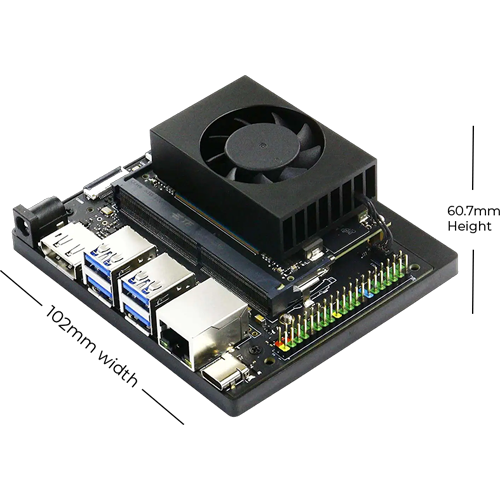
ProX Micro Edge Orin Developer Kit
Learn More
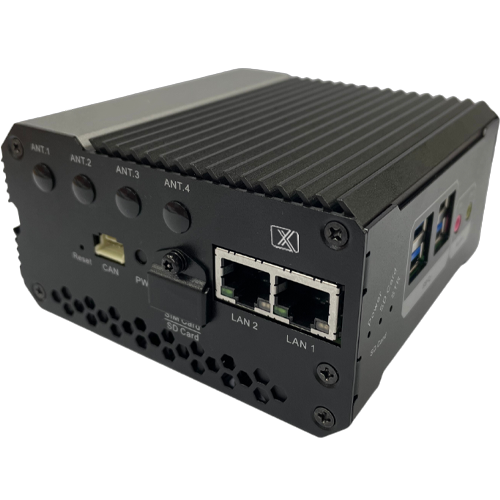
ProX Micro Edge Orin NX
Learn More
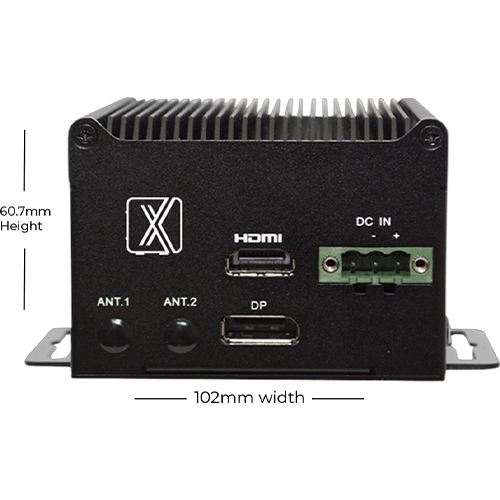
ProX Micro Edge Orin Nano
Learn More
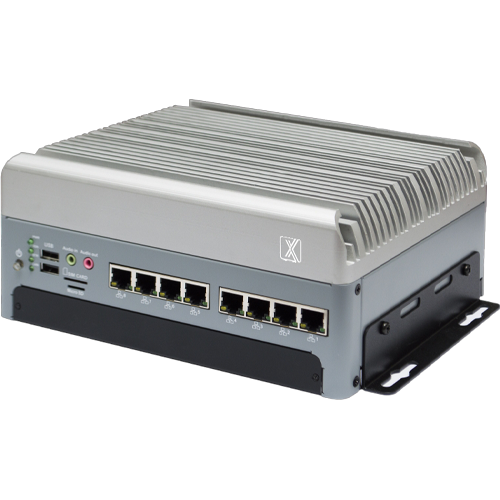
ProX Micro Edge AGX Orin
Resources you may find helpful.

Harness the power of GPU servers to revolutionize business operations with unparalleled performance in AI, data analysis, and rendering tasks.
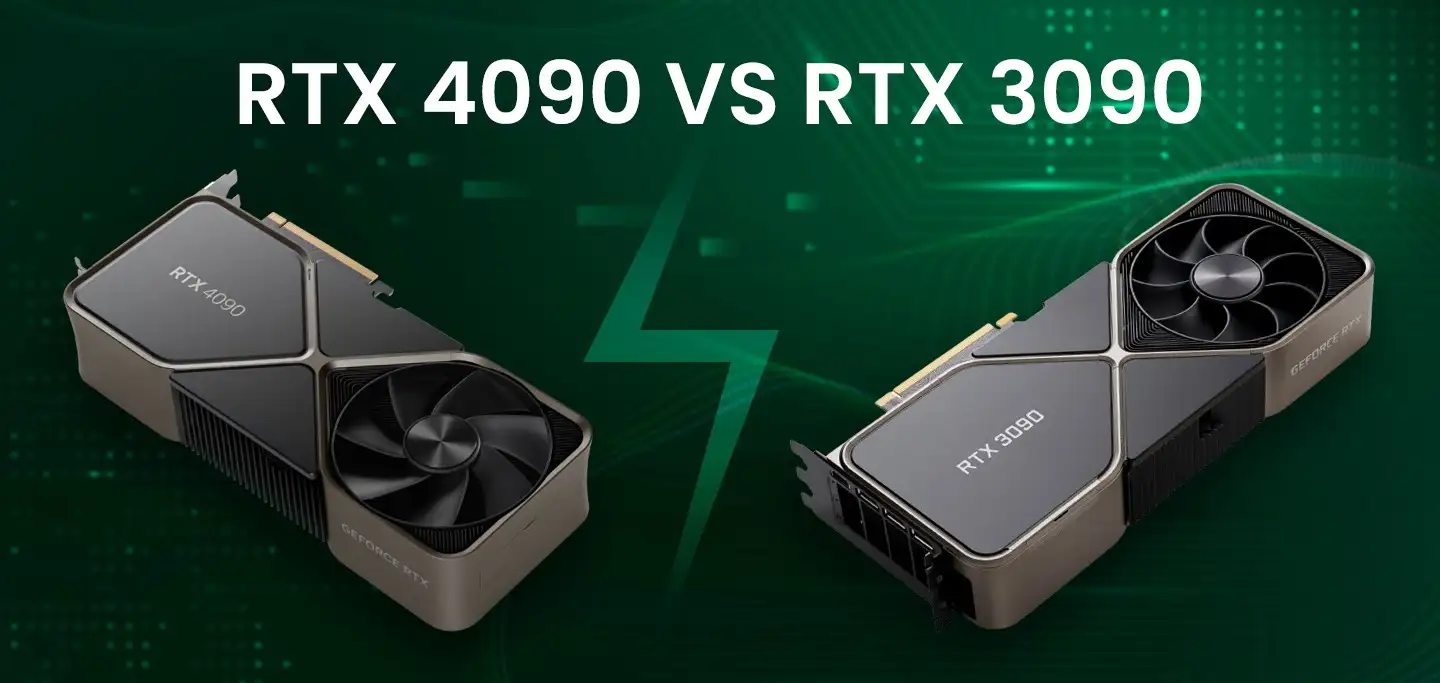
The power of NVIDIA® GeForce RTX 4090: Redefining deep learning benchmarks, exceeding expectations set by the RTX 3090
Best GPUs for AI and deep learning in 2024: NVIDIA's RTX 4090, A6000, A100, and more, benchmarked for performance and efficiency

Keep your computer running smoothly with these 10 essential tips. From regular backups to cleaning dust and updating software, ensure optimal performance and longevity.